
Log in
AP EXAMS REGISTRATION INSTRUCTIONS
All candidates should carefully review the regulations, policies, and deadlines for AP registration here before proceeding with the instructions below.
Important:
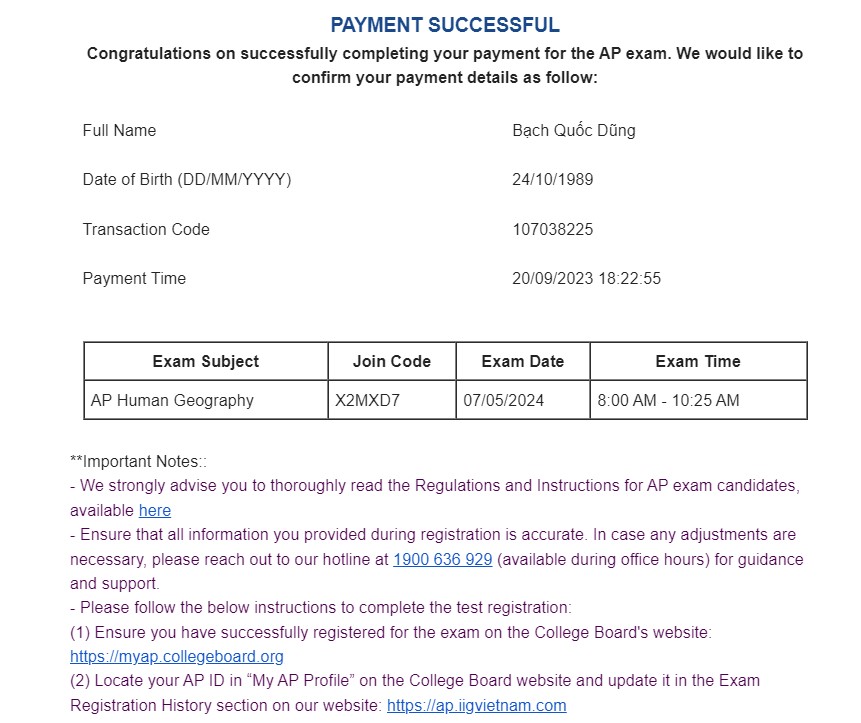
- First, candidates must register and complete the payment process through the IIG Vietnam registration portal. Upon successful payment, candidates will receive 'Join Codes' via an email confirmation from IIG Vietnam for each exam they have registered for.
- Next, candidates must log in to their College Board account and access the My AP section to register for their chosen exam directly with College Board.
- Then, candidates must update their AP ID on the IIG Vietnam registration page to complete the registration process.
Note:
- The candidate’s personal information that they filled on the IIG Vietnam registration page, including name, email address, and date of birth, must exactly match the information they registered on My AP with the College Board.
- ONLY tests that have been registered via College Board’s My AP and for which payment has been received by IIG Vietnam will be ordered.
- If you register for an exam in My AP using a join code but do not complete the payment with IIG Vietnam, or if you register and complete on IIG Vietnam registration website for an exam without complete the exam registration in My AP with College Board, you will not be eligible to take the exam.
- Candidates are required to update their AP ID in the Transaction History section on the IIG Vietnam registration website to complete the registration process. Failure to update the AP ID will result in ineligibility to take the exam.
- Candidates must carefully review the exam subjects before registering and making payment. Once the registration and payment process is completed, changes to the exam subjects will not be permitted. For further details, please refer here.
Step 1: Register and pay IIG Vietnam for AP Exam(s):
1. Access the Registration Link
Go to the following link: https://online.iigvietnam.com/
2. Create an Account
- Click on "Register/Log in"
- Select "Individual candidates"
- Choose "Create Account"
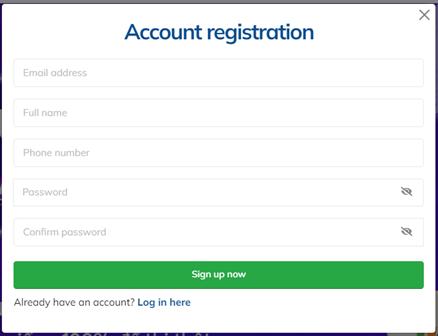
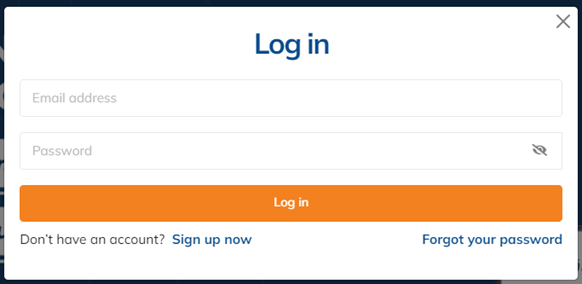
Note: Make sure to provide an active email address you will use for all AP-related transactions with IIG and the AP Program. IIG will send you an account confirmation email. After successful confirmation, you can log in to proceed with the exam registration.
3. Complete the IIG Registration form
Click on the "Test Registration" menu and choose "AP Exam."
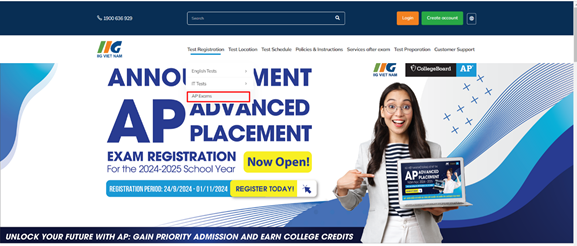
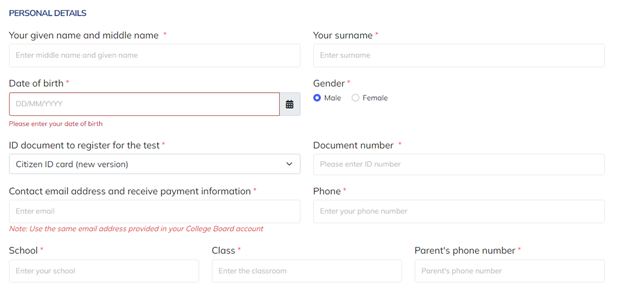
The system will display the exam registration form. Fill in all required information in the exam registration form.
Note: Make sure your registration personal information (name, email address, date of birth) is identical with the information registered via College Board’s My AP.
To establish a name on IIG registration form:
- Surname: Your surname (required)
- Given and middle name: Your middle name and given name (required)
For instance:
- If your name is Nguyen Quang Huy, input: Surname (Nguyen), and Given and middle name (Quang Huy).
- If your name is Tran Nguyen Phuong Thao, input: Surname (Tran), and Given and middle name (Nguyen Phuong Thao).
- Email Address: use the same active email address for your IIG account and your College Board AP account to receive all AP-related confirmation and updates.
- Mobile: please provide an active number in case IIG needs to contact you regarding your registration.
Select your preferred testing location, exam name and schedule. You can only choose one test in one test session on the test day.
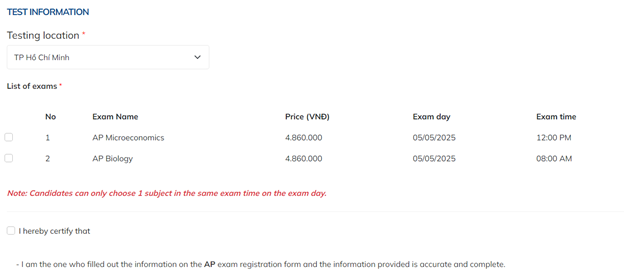
After completing the form, click “I Agree” checkbox and then “Continue.” The system will review the entered information. If there are any missing or incorrectly formatted details, you’ll be prompted to correct them. If all information is accurate and complete, you’ll be directed to the payment confirmation page.
4. Payment
Review the payment confirmation screen.
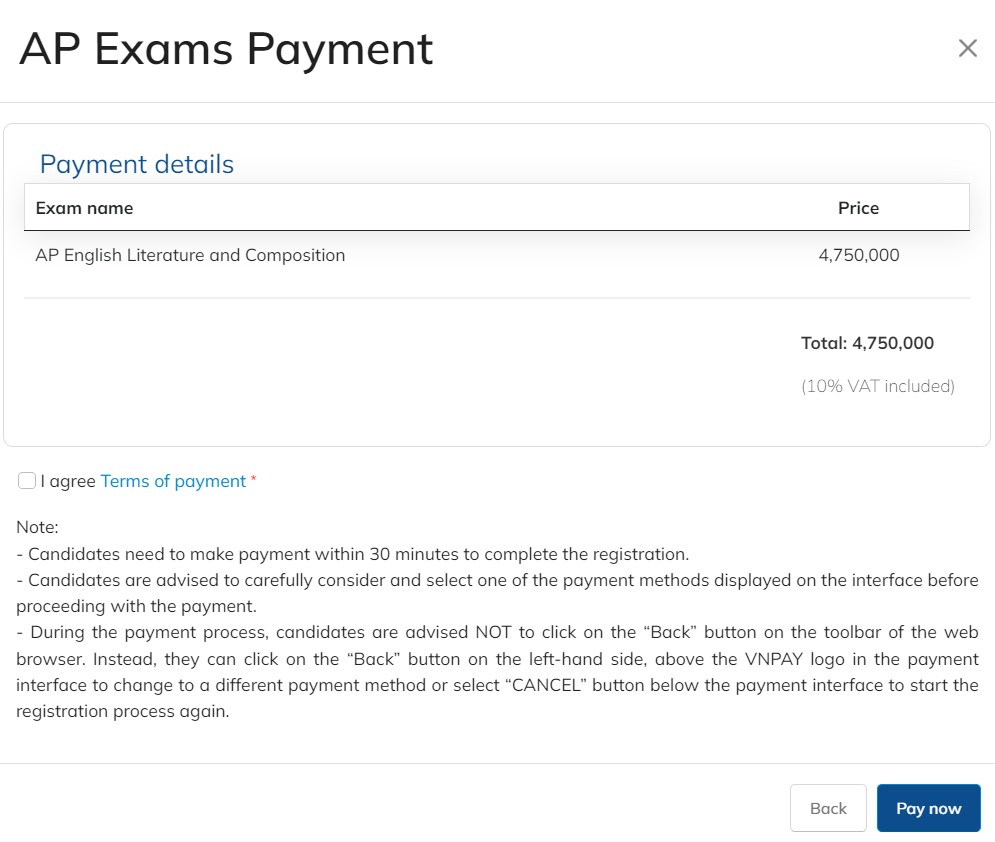
Confirm the list of tests you’ve registered for and the total amount to be paid. If any exam subjects are incorrect, go back and correct it now.
Candidates are required to complete their payment within 30 minutes after submitting their information and moving to the payment page. After this timeframe, candidates need to restart the registration process to proceed.
After verifying and agreeing to the payment terms, click "Pay Now." The system will redirect you to VNPAY's online payment interface.
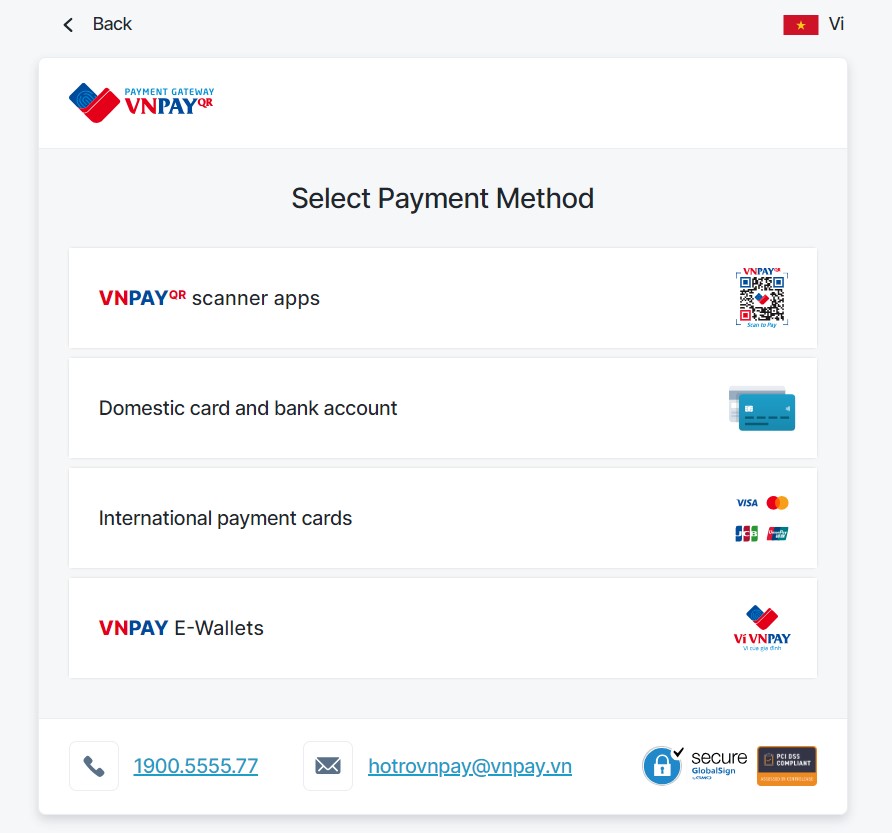
5. Receive Registration Confirmation
After completing payment step, students will receive registration confirmation on IIG website and via registered email.
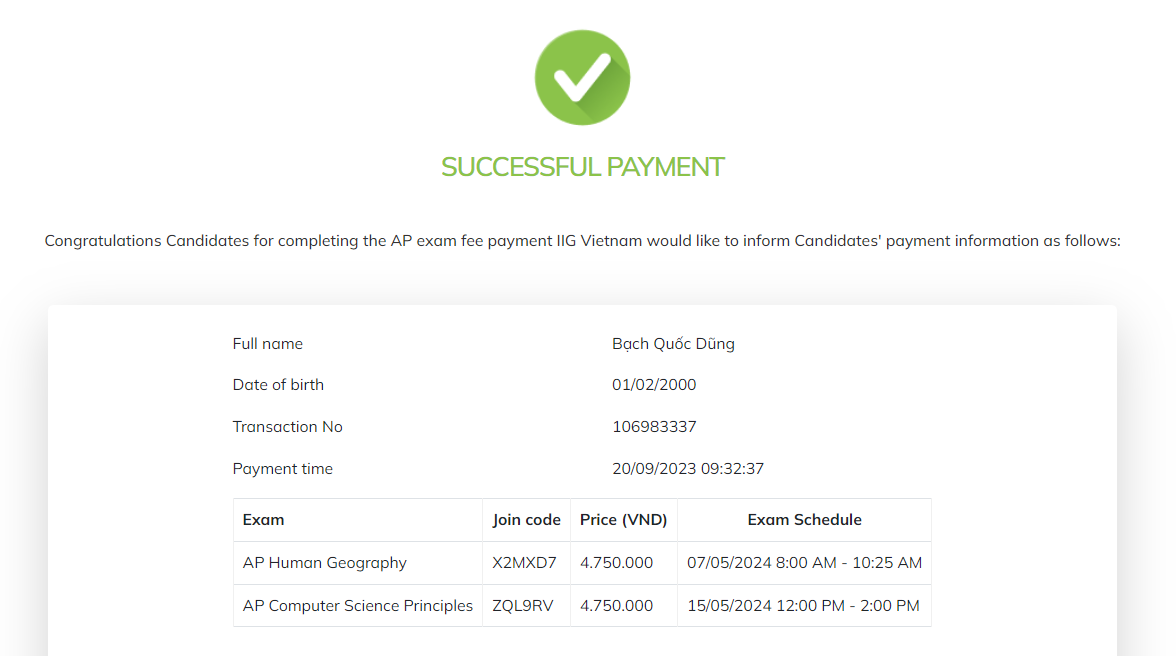
Step 2: Logging In/Signing Up To Your College Board Account
Visit: https://myap.collegeboard.org/login
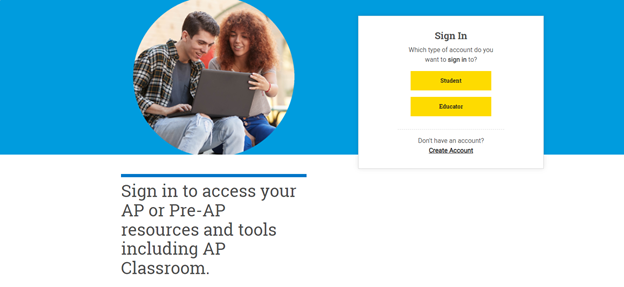
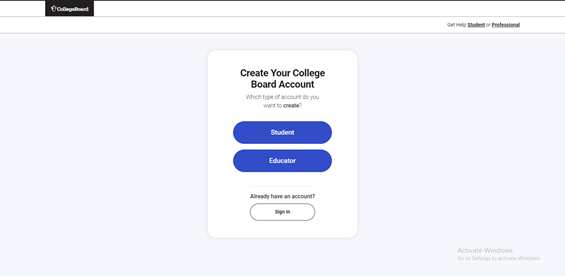
(If you already have a College Board account, select "Student" and log in using your credentials, you can skip this step)
If you do not have a College Board account, select "Create Account" and then choose "Student."
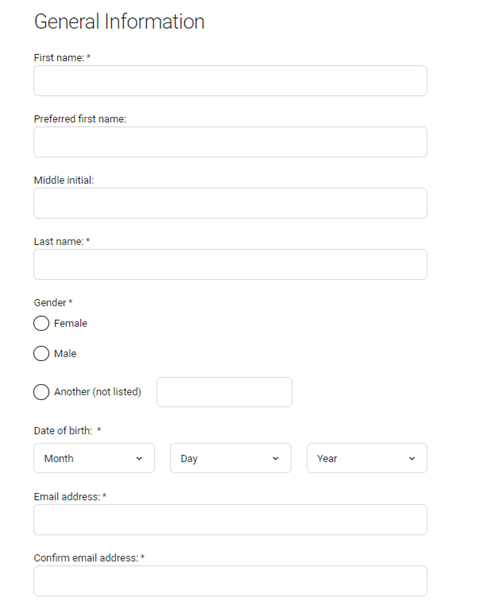
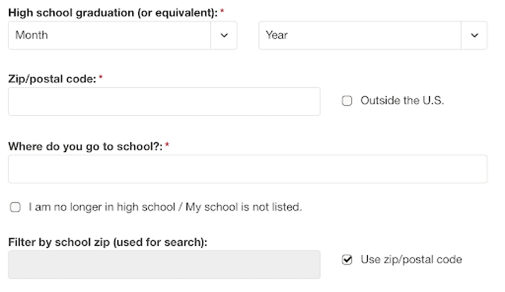
1. FILLING IN PERSONAL INFORMATION
Candidates must fill in their personal information to create a College Board account which will be use to register for AP exam.
All personal information you filled in your College Board account, including your name, email address, and date of birth, must matches the information you registered on the IIG website as well as your ID.
Enter Your Name:
- Provide your full and accurate name. This name will appear on your admissions tickets and score reports sent to score recipients.
- Candidates must ensure that the name used during exam registration process matches the name on your government-issued ID/Passport. Candidates will be refused to take the test if any of the information on their admission ticket is not matched with their ID.
- Mandatory fields for name entry:
- First name: Given name (required)
- Middle Initial: Leave blank
- Last name: Surname and Middle name (required)
For example:
- Candidate name: Nguyen Quang Huy,
First name: Huy
Middle name: blank
Last name: Nguyen Quang
- Candidate name: Tran Nguyen Phuong Thao
First name: Thao
Middle name: blank
Last name: Tran Nguyen Phuong
Additional information required for College Board account registration:
- Gender: Male or Female
- Date of Birth: Month/Day/Year format
- Email Address: Use an active email; losing access means losing account access.
- Graduation Month and Year from High School: Generally May-June in Vietnam.
- Postal Code:
- Tick "Outside the U.S."
- Select your school from the list. Choose "My school is not listed" if your school isn't listed.
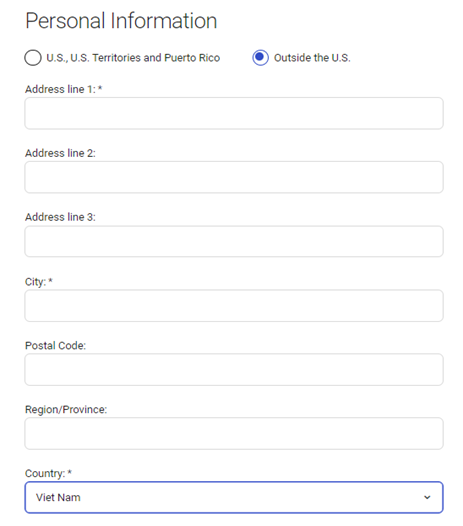
1.4: Personal Information Input Screen
- Personal Information: Choose "Outside the U.S." and then fill in your street and city.
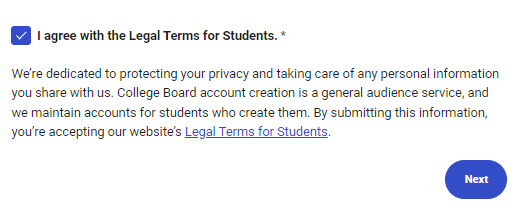
- Tick in the box of I agree to the Terms & Conditions and then click "Next."
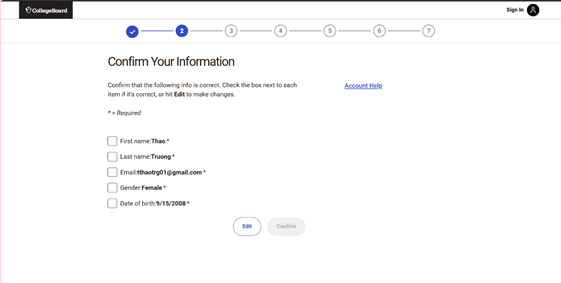
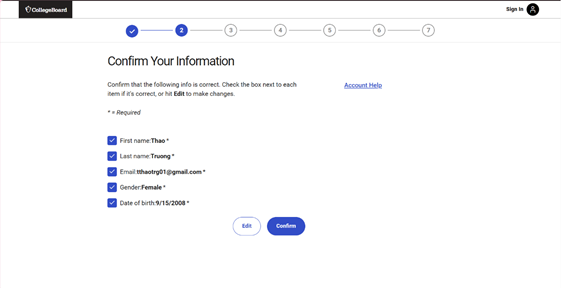
 2. VERIFY YOUR PERSONAL INFORMATION
- If all candidates personal information is correct, Tick in the box next to the accurate information and then click "Confirm" to proceed.
- If you notice any errors, tick the incorrect information and click "Edit" to make the necessary corrections.
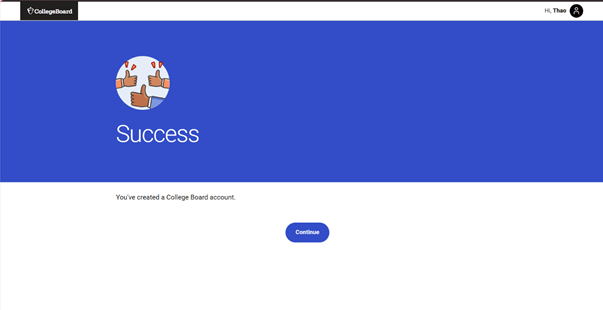
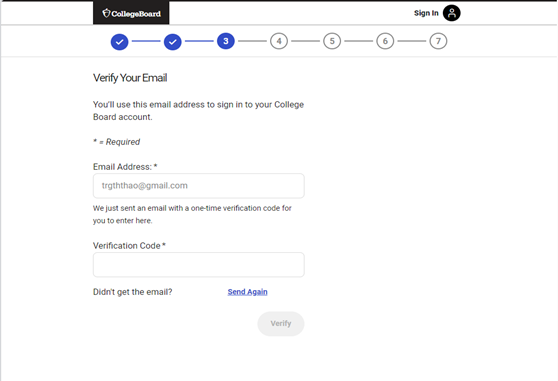
3. VERIFY EMAIL FOR ACCOUNT RECOVERY
- College Board will send a verification code to the email address provided. Check your email for the code, enter it in the "Verification Code" field, and click "Verify."
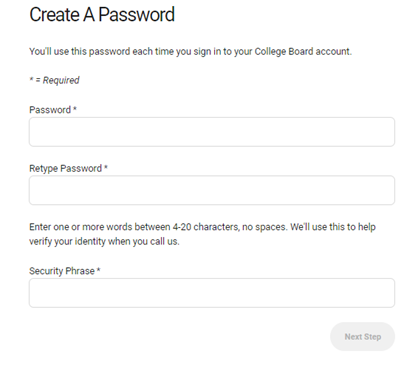
4. ADD YOUR ACCOUNT PASSWORD
- You must set a password for your account. Create a password according to College Board’s requirements and enter it twice to confirm. Choose a Security Phrase and enter it in the "Security Phrase" field.
Note: Remember your Security Phrase for future reference.
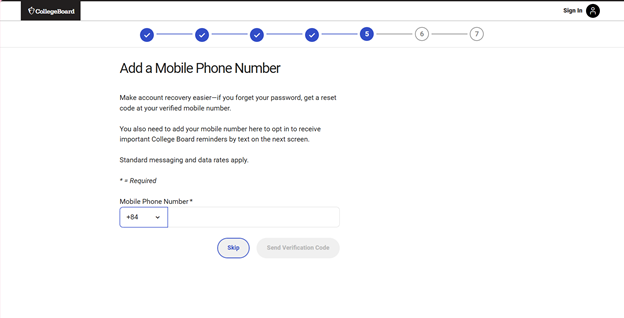
5. ADD A RECOVERY PHONE NUMBER
- You will be asked to add a recovery phone number for account security. You may skip this step by selecting "Skip."
- Click "Next/Skip" to complete the account creation process.
Step 3: Registering for the Exam in My AP (Join the exam in My AP with the provided join codes)
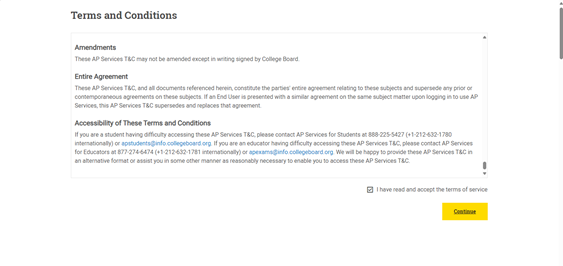
- Log in to MyAP: Access collegeboard.org using your newly created College Board account. New users will be required to agree to the College Board’s terms and conditions. Select "I have read and accept the terms of service" and click "Continue."
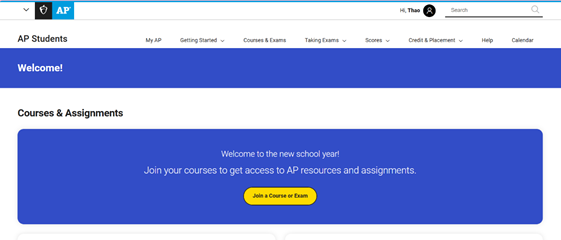
- Select "Join a Course or Exam":
Repeat this step if you need to register for multiple exams.
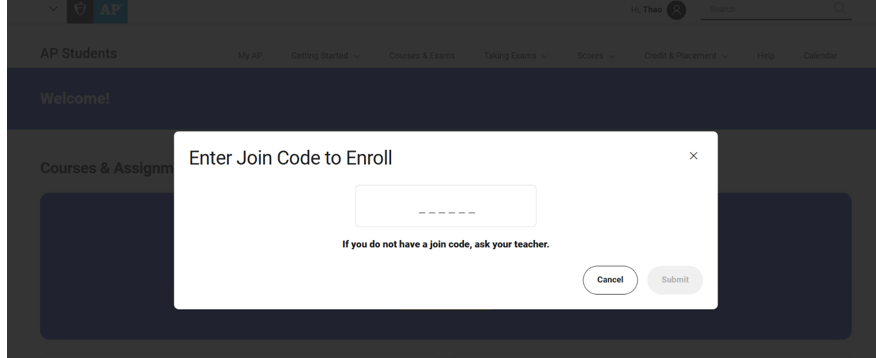
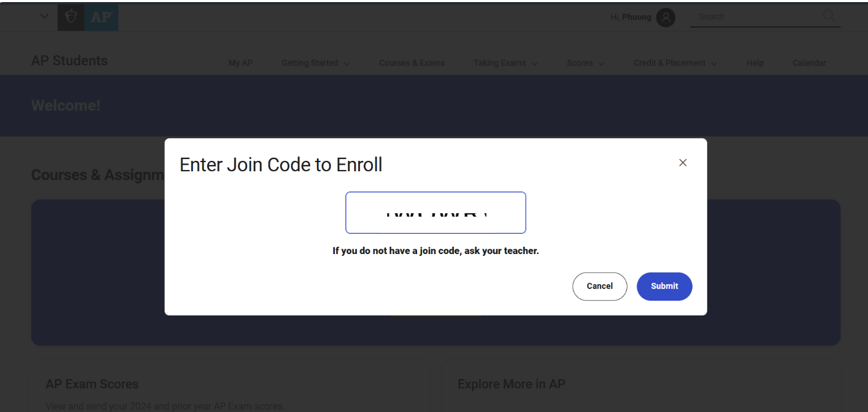
- Enter the Join Code:
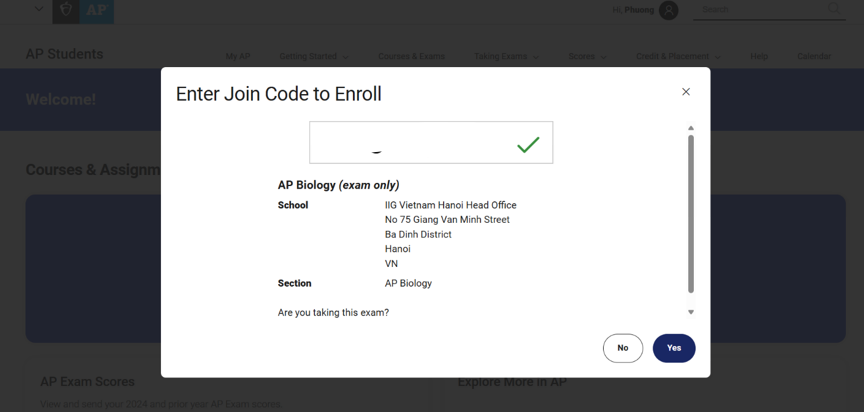
Enter the 6-character Join Code from the email confirming successful payment with IIG Vietnam. Verify that the exam and Join Code match your intended registration. Click "Submit" to proceed.
Verify the exam name, date, and testing organization, then Click "Yes."
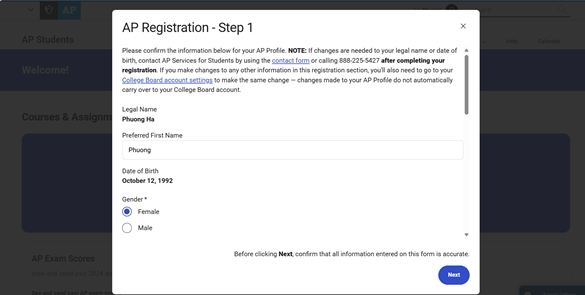
Note: For first-time registrants, please ensure that all personal information is filled out accurately in your AP Profile.
In the AP Registration - Step 1 interface, candiate must complete the all required fields: Gender, Legal Name, Date of Birth, and Email Address. Then click "Next" if all information is correct.
- Legal Name: Must match your identification and will be used for the official AP score report. Contact AP Services for Students if you need to make changes.
- (Optional) Preferred First Name: Enter any nickname here. It will not appear on the score report.
- Email Address: Use the same email as for IIG and College Board.
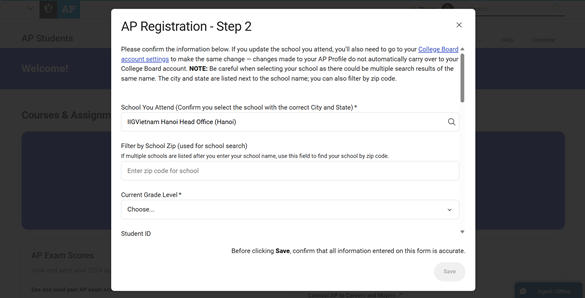
In AP Registration - Step 2, you will need to fill out the following required information:
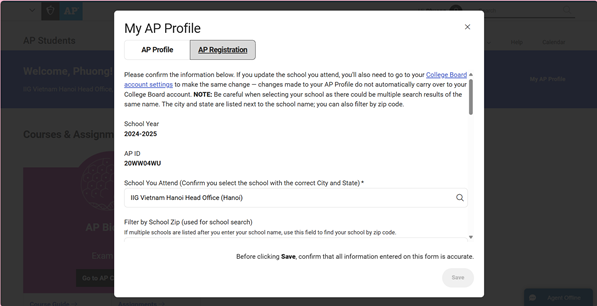
- School You Attend: Select IIGVietnam Hanoi Head Office.
- Current Grade Level: Select your current grade level.
- Student ID: This is optional, and it is different from the AP ID. Leave this field blank if not applicable.
- Which Language Do You Know The Best?: Choose the most appropriate answer.
- For questions regarding personal information, select the appropriate responses.
- Parent or Guardian 1: Select the highest level of education achieved by your parent or guardian.
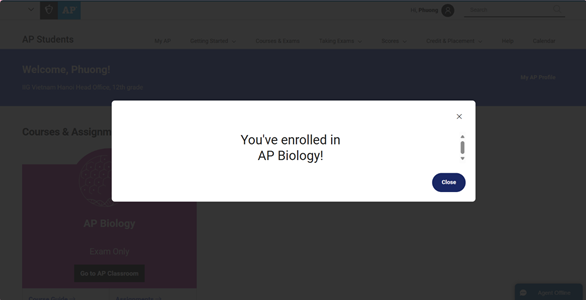
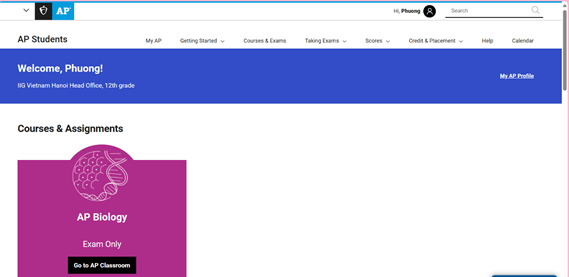
- A confirmation message will be displayed on the screen indicating that you have successfully registered for the exam. Please carefully verify the exam name shown. If it does not match the exam you intended to register for, double-check the join code in the payment confirmation email from IIG Vietnam. If further clarification is needed, please contact IIG Vietnam via their hotline at 1900636929 or email at info@iigvietnam.edu.vn for assistance.
- After completing registration, click "My AP Profile" to locate your AP ID. This ID is necessary for Step 4.
AP ID is your identification number used on test day for all exams registered within the academic year. Keep your AP ID confidential.
- In the My AP Biology interface, select AP Registration to view your AP ID.
- Update AP Profile: You can review your AP Profile information at any time. However, to change your First Name, Last Name, or Date of Birth, you must contact AP Services for Students. You can reach them via phone at +1 212-632-1780, use the Live Chat feature on the AP Students website at https://apstudents.collegeboard.org/, or submit a request through the Student Inquiry Form at org/apstudentinquiry.
Step 4: Update AP ID on https://online.iigvietnam.com/
Get your AP ID from My AP and add it in https://online.iigvietnam.com by following the steps below, so your payment can be verified with your exam. Only when you have updated your AP ID on IIG Vietnam’s site will your registration be considered completed.
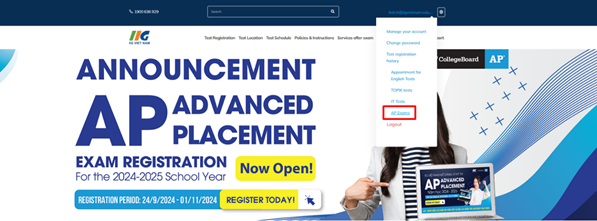
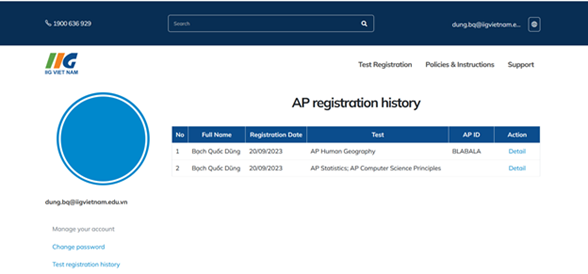
You can access your exam registration history:
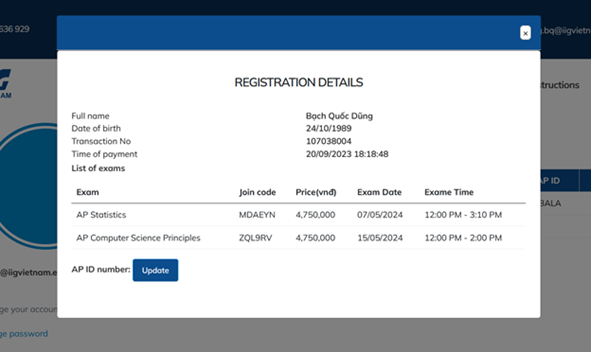
View exam details and update your AP ID number.
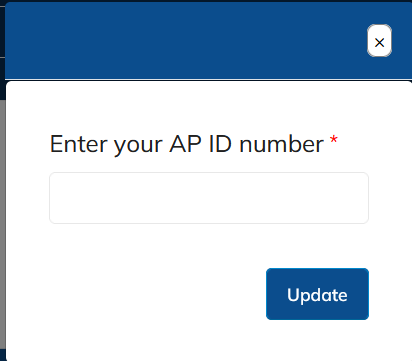
Enter your AP ID number after you've successfully registered on the partner system.
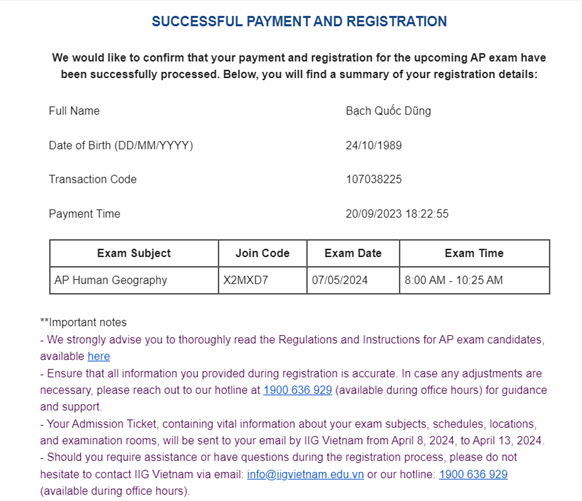
After updating your AP ID, a payment and registration confirmation will be sent to your email.
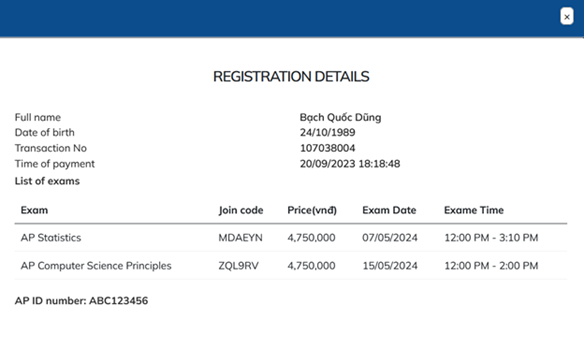
After you update your AP ID number, your exam details will be displayed as follows:
How do I know when my registration is successfully completed?
- Registered and paid IIG Vietnam through IIG website
- Completed exam registration through College Board’s My AP
- Updated your AP ID through IIG website
- Received successful payment and registration email from IIG Vietnam
Should you have any inquiries during registration process, please do not hesitate to contact IIG Vietnam via hotline 1900636929 or email info@iigvietnam.edu.vn.
What happens next?
IIG will confirm your registration is in My AP and payment has been received before ordering your exam by sending admission ticket to your registered email by 20th April, 2024. If IIG contacts you about your registration, please respond promptly.
Did you know? You can log into My AP and access AP Classroom resources like the Course Guide and AP Daily Videos for your registered exams. Note: Teacher-required tools like Assignments and Assessments are not available at this time for exam only registrations.
Warm regards,
IIG Viet Nam
Link nội dung: https://studyenglish.edu.vn/bai-thi-a97797.html